
PDF to CSV Converter: Extract Data from PDFs Easily
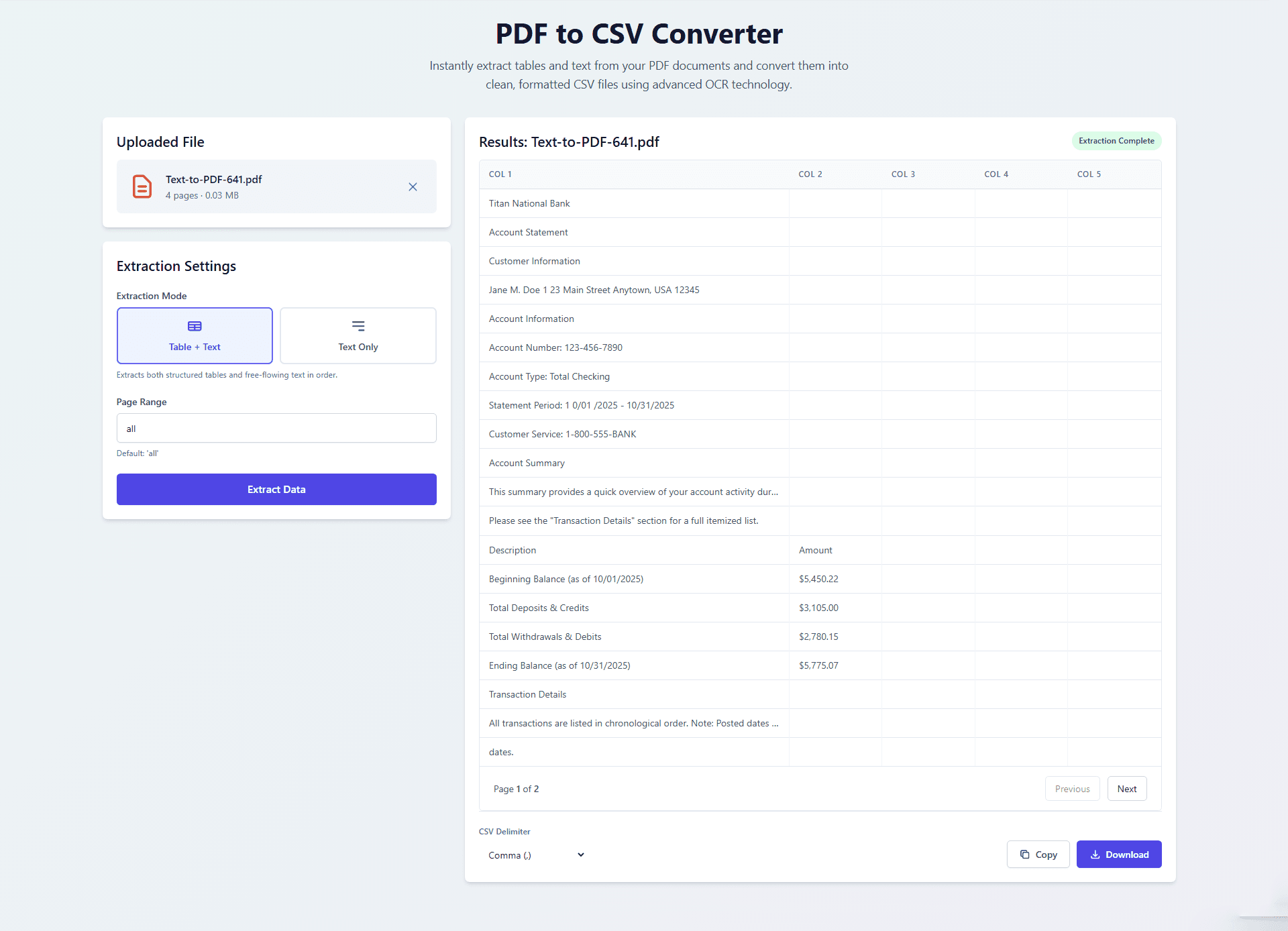
PDF files are widely used for sharing documents because they preserve formatting and layout across devices. However, working with data inside a PDF can be difficult, especially when you need to edit, analyze, or import that data into spreadsheets. This is where a PDF to CSV converter becomes useful.
A PDF to CSV converter is a tool designed to extract data from PDF documents and convert it into a structured format that can be opened in spreadsheet software such as Excel or Google Sheets. This is particularly helpful for professionals who deal with invoices, bank statements, reports, and scanned documents.
In this guide, we will explore how a PDF to CSV converter works, its key features, benefits, and practical use cases. We will also answer common questions to help you understand how to get the most out of this tool.
Try it now for free:
What is a PDF to CSV converter?
A PDF to CSV converter is a specialized utility that transforms the content of a PDF file into a CSV (Comma-Separated Values) format. CSV files store data in a simple table structure using rows and columns, making them easy to edit, sort, and analyze.
Unlike basic extraction tools, advanced converters use Optical Character Recognition (OCR) to read both digital and scanned PDFs. This allows the tool to identify text, tables, and layout elements even when the original document is not editable.
How OCR Improves Data Extraction
Optical Character Recognition, commonly known as OCR, is a technology that converts images of text into machine-readable text. In the context of a PDF to CSV converter, OCR plays a key role in handling scanned documents and complex layouts.
With OCR, the tool can:
Detect and extract text from scanned PDFs
Recognize tables and convert them into structured data
Maintain the correct reading order
Handle mixed content such as text and tables on the same page
Without OCR, many PDFs would require manual data entry, which is time-consuming and prone to errors.
Key Features of a PDF to CSV Converter
1. Table and Text Recognition
The tool can extract both tables and plain text from PDF documents. Users can choose between different extraction modes depending on their needs, such as extracting only text or both tables and text together.
2. Support for Scanned Documents
Advanced OCR allows the converter to process scanned PDFs effectively. This is especially useful for digitizing printed documents or archived records.
3. Language Selection
Choosing the correct document language can improve OCR accuracy. This ensures that characters and words are recognized correctly during extraction.
4. Custom CSV Export Options
Users can select different CSV delimiters, such as commas or semicolons, depending on their requirements. This flexibility ensures compatibility with different software tools.
5. Secure Processing
Files are processed securely, and the extracted data remains within the user’s browser session. This is important when working with sensitive information.
How to Use a PDF to CSV Converter
Using a PDF to CSV Converter is straightforward. Below is a step-by-step guide:
Step 1: Upload Your File
Drag and drop your PDF file into the upload area. Most tools support files up to a certain size, such as 25MB.
Step 2: Choose Extraction Settings
Select the extraction mode based on your needs:
Table + Text for structured data
Text Only for plain content
You can also select the document language and choose specific pages.
Step 3: Extract Data
Click the extract button to start processing. The tool will analyze the document and convert it into structured data.
Step 4: Export the Results
Review the extracted data, choose your preferred CSV delimiter, and download or copy the results.
Benefits of Using a PDF to CSV Converter
Saves Time
Manual data entry can take hours, especially for large documents. A converter automates this process and delivers results quickly.
Reduces Errors
Typing data manually increases the risk of mistakes. Automated extraction improves accuracy and consistency.
Improves Productivity
With data in CSV format, you can easily sort, filter, and analyze it using spreadsheet tools.
Enables Data Analysis
CSV files can be imported into various data analysis tools, making it easier to generate insights and reports.
Handles Complex Documents
Advanced OCR allows the tool to process documents with mixed layouts, including tables, text, and images.
Real-World Use Cases
Invoice Processing
Businesses can extract line items, totals, and dates from invoices and import them into accounting systems.
Bank Statement Analysis
Financial data from bank statements can be converted into CSV format for budgeting and analysis.
Report Digitization
Organizations can digitize printed or scanned reports and make the data searchable and editable.
Data Migration
Legacy documents can be converted into structured formats for integration into modern systems.
Research and Data Collection
Researchers can extract data from reports and documents to analyze trends and patterns.
Common Challenges and Solutions
Complex Layouts
Some PDFs have irregular layouts that are difficult to parse. Using the correct extraction mode and selecting specific pages can improve results.
Low-Quality Scans
Poor image quality can affect OCR accuracy. Using clearer scans or adjusting the document language can help.
Password-Protected Files
Encrypted PDFs cannot be processed. Removing the password before uploading is necessary.
Large Files
Processing large documents may fail or take longer. Splitting the file into smaller sections can improve performance.
Frequently Asked Questions
Is my data secure?
Yes. The files are processed securely, and the data is not stored on servers. The extracted information remains within your browser session.
Does it work with scanned PDFs?
Yes. OCR technology allows the tool to read and extract text from scanned documents.
What if extraction fails?
Try processing fewer pages at a time or check if the file is password protected.
Can I choose different CSV formats?
Yes. You can select different delimiters depending on your needs.
Do I need to install anything?
Most modern PDF to CSV converters work directly in your browser, so no installation is required.
Tips for Best Results
Use high-quality PDF files whenever possible
Select the correct language for OCR
Process smaller sections for complex documents
Review extracted data before exporting
Conclusion
A PDF to CSV converter is a practical tool for anyone who needs to extract and work with data from PDF documents. By converting static files into structured formats, it simplifies tasks such as data analysis, reporting, and record management.
With features like OCR, table recognition, and flexible export options, this tool provides an efficient way to handle both digital and scanned PDFs. Whether you are managing business documents or conducting research, a PDF to CSV converter can save time, reduce errors, and improve overall productivity.